MyThumbTester guide
What to change first when a thumbnail preview is unclear
Use a fixed revision order: clarify the subject, remove lost details, then revise the title if it does not add context.
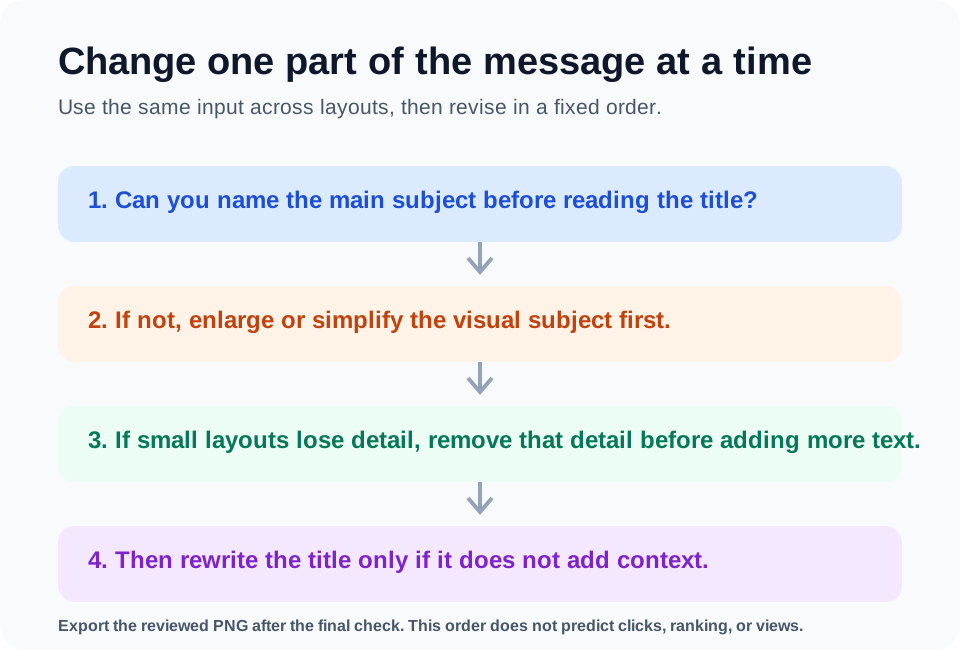
Clarify the image before rewriting the title
When a thumbnail preview is unclear, change the image before changing the title. In MyThumbTester, look at the same local image in Home feed, Search, Watch page, Shorts, Mobile, and Sidebar without reading the title. If the intended subject cannot be identified, make that subject larger, simplify competing elements, or increase the separation from its background.
This is a reproducible visual check: the image and layout are the only inputs being inspected. It does not claim that one change will improve click-through rate, rank, or views.
Remove details that do not survive smaller layouts
After the main subject is clear, switch to Sidebar and Mobile. If a thin border, small text, secondary face, or background object disappears, remove or de-emphasize it instead of trying to explain it with a longer title. A detail that cannot be read in a smaller illustrative preview should not carry the main message.
Revise the title after the image has one clear job
Only then read the title with the same image. Keep the title when it adds a specific outcome, context, or question. Rewrite it when it repeats the image or when it has to rescue a crowded design. This separates an image problem from a wording problem, so each revision has a clear reason.
Export the version you checked
When the image and title communicate one idea across the layouts you need, export the selected preview PNG and store it with the video project. The export records the presentation you reviewed; it is not audience-test evidence.