MyThumbTester guide
Use small layouts to review a thumbnail before publishing
Check Sidebar and Mobile to find details that do not survive a smaller illustrative preview.
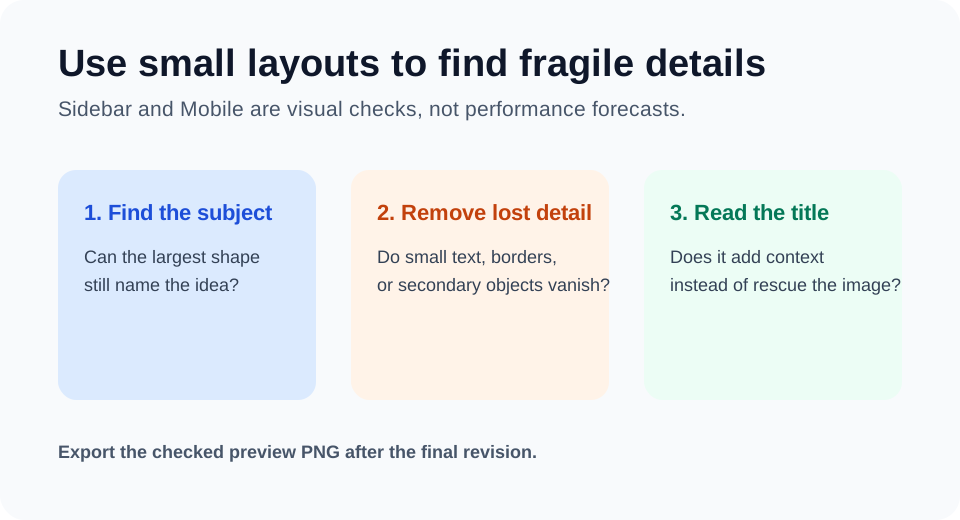
Start with the largest shape
Use Sidebar and Mobile after checking a thumbnail in a larger layout. In MyThumbTester, load the same local image and title, then ask whether the largest visible shape still identifies the intended subject. If it does not, simplify the image or make the focal subject more distinct before editing the title.
This is a presentation check based on the tool’s illustrative layouts. It does not predict clicks, ranking, or views.
Remove details that disappear
Small text, thin borders, secondary faces, and background objects can become unreadable in a smaller preview. If one of those elements is carrying the main idea, remove it or reduce its role. Do not compensate by adding a longer title to explain an image that is no longer clear.
Read the title after the image is clear
Once the subject survives the small layout, read the title with the image. Keep it when it adds context or a specific outcome. Revise it when it repeats the image or has to rescue a crowded composition. Export the reviewed PNG when the same message remains understandable in the layouts you need.